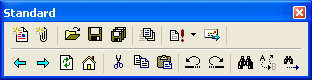
Commands that let you manage files, perform basic operations throughout the application or set the project preferences and options. Most of them are available from the standard toolbox.
|
|
Standard Commands Commands that let you manage files, perform basic operations throughout the application or set the project preferences and options. Most of them are available from the standard toolbox. |
| Command Menu | Icon | Shortcut | Focus | Action |
| File/New | 
|
Ctrl+N | Application running | Start new project , new content file or new script file |
| Project/New Content | 
|
Ctrl+E | Project file open | Add a new project content |
| File/Open | 
|
Ctrl+O | Application running | Open existing project or editable files |
| File/Close | Ctrl+W | Project file open | Close project | |
| File/Save | 
|
Ctrl+S | Project file open | Save active document |
| File/Save All | 
|
Ctrl+Shift+S |
Project open |
Save project and all unsaved content files |
| View/Refresh | 
|
F5 | Application running | Refresh active view |
| File/Publish and Send | 
|
Project open | Generate 'pub' tree and optionally render the messages | |

|
Project file open | Open the active document with the associated external application | ||
| Tools/Send Test Message | 
|
From the preview | Send the previewed message | |
| File/Exit | Ctrl+Q | Application running | Exit the application | |
| File/Queue | Design window | Display the queue window | ||
| Project/Properties | Alt+Enter | Project open | Let you set/modify project properties | |
| Edit/Undo | 
|
Ctrl+Z | Project file open | Cancel last command |
| Edit/Redo | 
|
Ctrl+Y | Project file open | Repete last command |
| Edit/Cut | 
|
Ctrl+X | Content file open | Move selection from document to clipboard |
| Edit/Copy | 
|
Ctrl+C | Content file open | Copy selection from document to clipboard |
| Edit/Paste | 
|
Ctrl+V | Content file open | Insert clipboard content inside document |
| Edit/Delete | Content file open | Delete selection | ||
| Edit/Select All | Ctrl+A | Content file open | Select all document content | |
| Edit/Find | 
|
Ctrl+F | Content file open | Search document for string |
| Edit/Find Next | 
|
F3 | Content file open | Resume search for next string occurrence |
| Edit/Replace | 
|
Content file open | Search document for string to replace | |
| Tools/Options | Project open | Let you set/modify mailing options | ||
| Tools/Import addresses | Project open | Let you quickly start a distribution list | ||
| Window/Cascade | Projects or project files open | Arrange multiple windows | ||
| Window/Tile | Projects or project files open | Arrange multiple windows | ||
| Window/Arrange Icons | Projects or project files open | Arrange collapsed windows | ||
| Help/Help Topics | Application running | Hyperlink to the help files index |
|
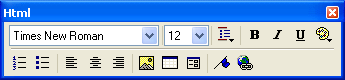
HTML Editor Commands Commands that let you create the HTML message content. Note: the embedded scripts are inserted through the Insert/Data Field command AFTER linking the HTML file to the project. |
| Menu Command | Icon | Shortcut | Focus | Action |
| Insert/Picture | 
|
HTML file in content view | Insert an image at insert point, embedded inside the email file | |
| Insert/Bookmark | 
|
|
HTML file in content view |
Create an anchor point at insert point |
| Insert/Hyperlink | 
|
Ctrl+K | Text or image selected | Display the hyperlink box |
| Insert/Horizontal Line | Right-click | HTML file in content view | Create an <HR> tag at insert point | |
| Insert/Break Line | Shift+Enter | HTML file in content view | Create a <BR> tag at insert point | |
| Insert/Data Field | 
|
HTML file in content view | Generate the script for inserting a content variable | |
| Insert/Script | HTML file in content view | Insert server or client side scripts inside the document | ||
| Format/Style | 
|
HTML file in content view | Let you select standard HTML text styles | |
| Format/Font | 
|
HTML file in content view | Let you choose the character font from list | |

|
HTML file in content view | Let you choose the character size from list | ||

|
HTML file in content view | Let you choose the character color from list | ||
| Format/Alignment/Left | 
|
HTML file in content view | Align the selected paragraph lines to the left | |
| Format/Alignment/Center | 
|
HTML file in content view | Center the selected paragraph lines | |
| Format/Alignment/Right | 
|
HTML file in content view | Align the selected paragraph to the right | |
| Format/Number List | 
|
HTML file in content view | Insert <OL> and generates <LI> per each selected paragraph | |
| Format/Bullet List | 
|
HTML file in content view | Insert <UL> and generates <LI> per each selected paragraph | |
| Format/Increase Indent | HTML file in content view | Generate BLOCKQUOTE tags around text selection | ||
| Format/Decrease Indent | HTML file in content view | Decrease quantity of BLOCKQUOTE tags around text selection | ||
| Format/Properties | Right-click | Object selected | Display the attribute box for selected pictures or <HR> lines | |
| Format/Page Properties | Right-click | HTML file in content view | Let you specify default colors and document margins | |
| Table/Insert Table | 
|
HTML file in content view | Display the table attributes box | |
| Table/Insert Row | Right-click | Cell selected | Add one row above the row of selected cell | |
| Table/Insert Column | Right-click | Cell selected | Add one column before the column of selected cell | |
| Table/Insert Cell | Cell selected | Add one cell to row of selected cell | ||
| Table/Delete Rows | Cell selected | Remove the row of selected cell | ||
| Table/Delete Columns | Cell selected | Remove the column of selected cell | ||
| Table/Delete Cells | Cell selected | Delete selected cell, removes the <TD></TD> tags | ||
| Table/Merge Cells | Cells from row selected | Merge contiguous cells from a same row | ||
| Table/Split Cells | Cell selected | Split selected cell along row, generates colspan=2 in other rows | ||
| Table/Table Properties | Right-click | Cell selected | Display the table attributes box with settings of selection | |
| Table/Cell Properties | Right-click | Cell selected | Display the cell attributes box with settings of selection | |
| Tools/HTML Editor Options | Project open | Let you set your editor preferences |
|
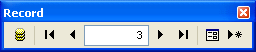
Record Editor Commands Commands that let you edit records from the receivers view. Note: modifications are performed in the source database as well. |
| Menu Command | Icon | Shortcut | Focus | Action |
| Project/Record/Edit | 
|
Right click | Record highlighted in receivers view | Edit highlighted record |
| Project/Record/Add New | 
|
Right click | From the data view | Add new record to list |
| Edit/Delete | Del | Record highlighted in receivers view | Delete highlighted record from list | |
| Project/Record/Move First | 
|
Ctrl+Home | Record highlighted in receivers view | Highlight first record in list |
| Project/Record/Move Previous | 
|
Ctrl+Left |
Record highlighted in data view |
Highlight previous record |
| Project/Record/Go To | 
|
Ctrl+G | From the data view | Highlight the numbered record from list |
| Project/Record/Move Next | 
|
Ctrl+Right | Record highlighted in receivers view | Highlight following record |
| Project/Record/Move Last | 
|
Ctrl+End | Record highlighted in receivers view | Highlight last record in list |
| Tools/Verify Addresses | From the data view | Apply filtering rules to email addresses in list |
|
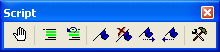
Script Editor Commands Commands that let you edit the milset.vbs global script. Commands are available from the global view. |
| Menu Command | Icon | Shortcut | Focus | Action |
| Edit/Script Debugger/Open | Global view | Attach debugger: InterDev or Microsoft script developer | ||
|
Edit/Script Debugger/ Break at Next Statement |
Global view | Partially run the script | ||
| Edit/Toggle Breakpoint | 
|
F9 | Global view | Add / remove breakpoint, scripts execution stops at breakpoints |
| Edit/Clear All Breakpoints | Global view | Remove all breakpoints | ||
| Edit/Comment | 
|
Global view | Turn selection into comment | |
| Edit/Uncomment |
|
Global view | Remove the single quotes from selection | |
|
Edit/Bookmarks/ Toggle Bookmark |

|
F2 | Global view | Add / remove bookmarks |
|
Edit/Bookmarks/ Next Bookmark |

|
Global view | Move cursor to next bookmark | |
|
Edit/Bookmarks/ Previous Bookmark |

|
Global view | Move cursor to previous bookmarks | |
|
Edit/Bookmarks/ Clear All Bookmarks |

|
Global view | Remove all bookmarks | |
| Tools/Script Editor Options | 
|
Let you set your editor preferences |
|
Queue Commands Commands that let you publish, render and send your mailing project. Commands are available from the queue window. |
| Menu Command | Icon | Shortcut | Focus | Action |
| Queue/Mailing/Render/Start | 
|
Right click | Queue selected | Start generating the email files (MIME encoding) |
| Queue/Mailing/Render/Pause | 
|
Right click | Rendering started | Pause the rendering, can resume at interruption point. |
| Queue/Mailing/Render/Stop | 
|
Right click | Rendering started or paused | Cancel the rendering, offers to clean up the outbox folder |
| Queue/Mailing/Mailer/Start | 
|
Right click |
Messages in outbox |
Start transmission, moves messages from outbox to sent folder |
| Queue/Mailing/Mailer/Stop |
|
Right click | Transmission started | Stop transmission, unsent messages remain in outbox |
| Queue/Mailing/Delete | Right click | Queue selected | Delete queue along with its folders | |
| Queue/Mailing/Statistics | Right click | Queue selected | Present synopsis of mailing results | |
| Queue/Mailing/Schedule | Right click | Queue selected | Schedule the mailing (mailer component) | |
| Queue/Mailing/Properties | Right click | Queue selected | Display the mailing project properties box | |
| Queue/Message/Open | Right click | Message(s) selected | Open the message file in the email client | |
| Queue/Message/Edit | Right click | Message(s) selected | Open the message file in notepad (EML format) | |
| Queue/Message/Delete | Right click | Message(s) selected | Delete message files | |
| Queue/Message/Properties | Right click | Message(s) selected | Edit message file properties | |
| Queue/Folder/Delete All | Right click | Message folder selected | Delete all messages inside folder | |
| Queue/Folder/Abort All | Right click | Outbox folder selected | Abort outbox messages, moves them to the abort folder | |
| Queue/Folder/Select All | Ctrl+A | Queue / folder selected | Select all folders or messages | |
| Queue/Folder/Refresh | F5 | Mailer or queue selected | Refresh view |